API - Getting Started
General Information
The Valoon API consits of multiple services which act together to form the backbone of our software. These services are the Entity Service which is used as the main data store for our entities, the Notification Service which handles changes made to entities and notifies the affected users, the Translation Service which is used as an intermediate service between our translation provider to enable caching and interchangability of the provider and the API Gateway which is used as the main entry point to from the web to our services.
Prerequisites
You should have installed Docker and the .NET SDK.
Docker
Mac
Install Docker from their Official Website
Windows
Install Docker from their Official Website
.NET SDK
Mac
brew install dotnet-sdk
Windows
Install from Microsofts Official Website
Rust
Follow the Rust installation instructions found Here.
Authentication
Authentication is done via Entra External ID using the Valoon Auth Tenant. If you are not a member of the Tenant yet, you should ask an Administrator for access.
Creating a secret
In the entra admin center make sure you are in the correct Tenant and then navigate to Applications > App registrations. Under All Applications select Valoon DEV. Save the Application ID and Directory ID somewhere you can find it later. Then proceed to Certificates & secrets and create a new secret, which you will also store somewhere safe.
Setting Up the environments
To setup all the external services needed for the API we need to start several docker containers and create some Azure resources in order for everything to run.
Docker
We need a PostgreSQL and a Redis container for data storage and cache.
Postgres
docker run --name postgres-container -e POSTGRES_PASSWORD=postgres -p 5432:5432 -d postgres:latest
Your connection string for further use will be:
Host=localhost;Port=5432;Database=<database-name>;Username=postgres;Password=postgres;Pooling=true;Include Error Detail=true;
Make sure to replace the <database-name> with a different name for each service.
Redis
docker run -it -d -p 6379:6379 redis
Your redis connection string for further use will be: localhost:6379
Azure Storage
If you do not have an azure storage account already create one here. Navigate into your storage account under Security + networking > Access keys. Then copy one of the Connection strings and store it.
Azure Service Bus
If you do not have an azure service bus already create one here. In the overview create a new queue and make sure to check Enable sessions. Now go to Settings > Shared access policies, click on RootManageSharedAccessKey and store the Primary Connection String somewhere safe.
Getting started
Starting the Services
Start by cloning the repos for the Entity Service, Notification Service, Translation Service and API Gateway.
For the .NET Services (all except the API Gateway) copy the appsettings.json-File
and rename the copy to appsettings.Development.json and fill it in using the values
you have prepared before.
If you have the C# Dev Kit-Extension installed in VSCode you should be able to run
all the projects using F5. Alternatively you can run dontent watch or dotnet run.
For the API Gateway which is written in Rust you can start it using cargo run or
cargo watch +x run if you install cargo watch using cargo install cargo-watch.
Creating entities
Start by navigating to the Entity Service-Swagger Page.
To login use the Authorize Button and continue by selecting all scopes and clicking on the Authorize
Button at the bottom.
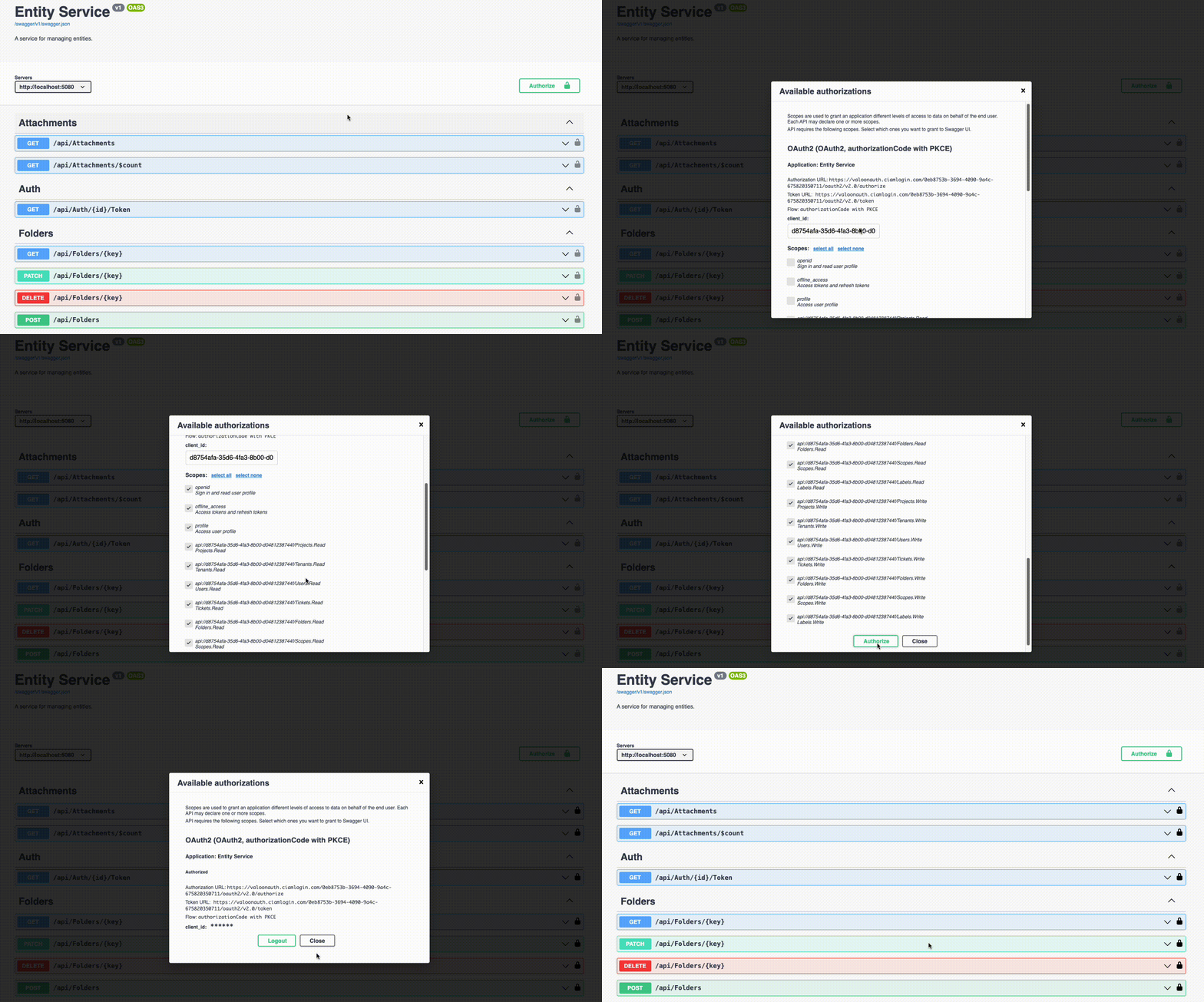
Next you should create your user account in the entity service. To do that scroll down to the
Users Section and expand api/Users/SignUp. Create your user using the following payload
with your name:
{
  "firstName": "John",
  "lastName": "Doe"
}
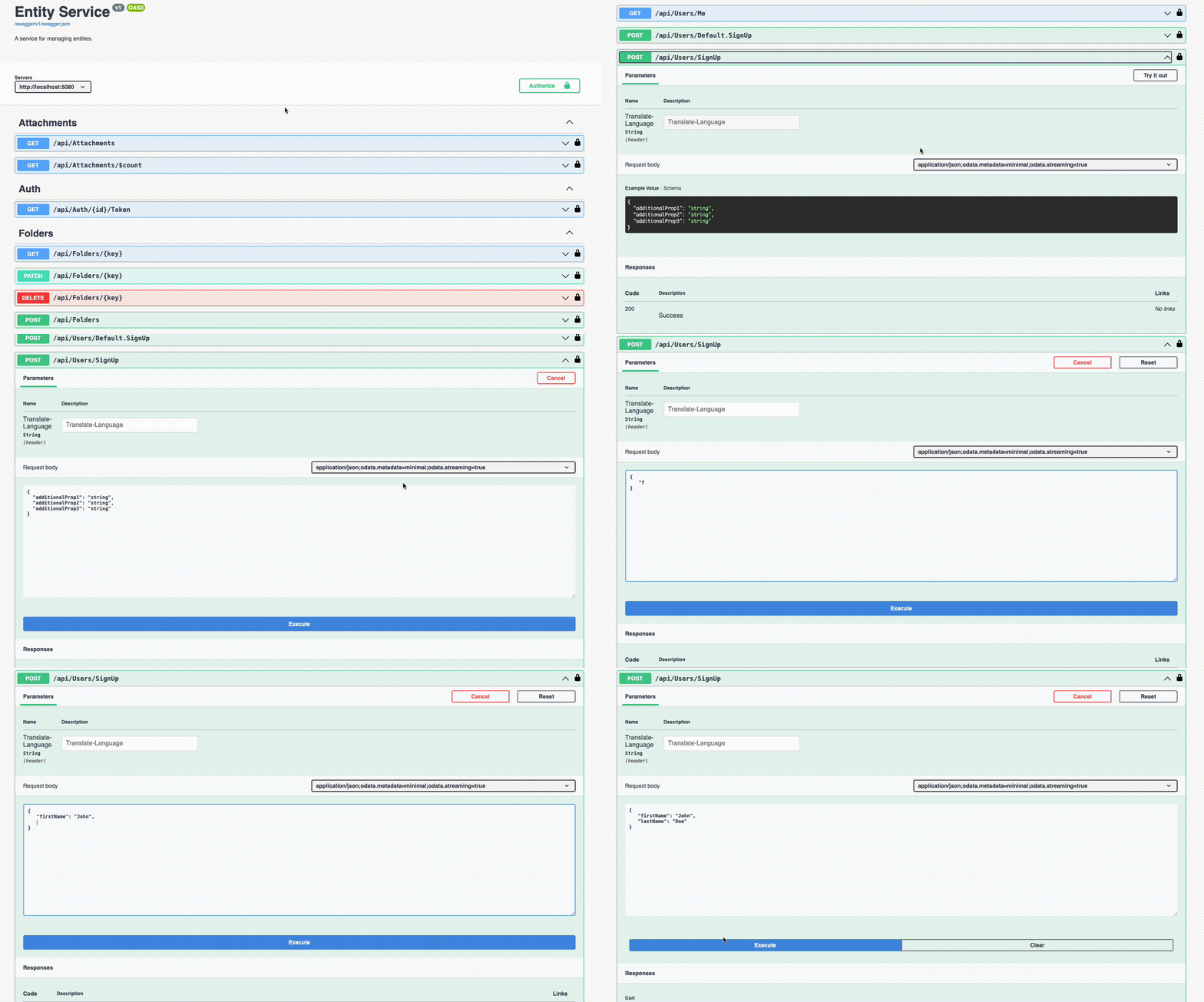
Now you are able to create Tenant by using the POST /api/Tenants-Endpoint
with the following payload:
{
  "name": "Valoon",
  "description": "Valoon connects employees. On site and in the office.",
  "contact": {
    "name": "John Doe",
    "email": "info@valoon.chat",
    "phone": "+4915679060600"
  },
  "address": {
    "street": "Carlo-Schmid-Allee 3",
    "city": "Dortmund",
    "state": "NRW",
    "zip": "44263",
    "country": "Germany"
  }
}
Copy the Tenants id from the response and use it to create a project with
the POST /api/Projects-Endpoint and the following payload:
{
  "name": "Valoon HQ",
  "description": "Construction of Valoon Headquarters",
  "tenantId": "<your-tenant-id>",
  "address": {
    "street": "Carlo-Schmid-Allee 3",
    "city": "Dortmund",
    "state": "NRW",
    "zip": "44263",
    "country": "Germany"
  }
}
Copy the Projects id from the response and use it to add a project iamge
with the PATCH /api/{resourceType}/{key}/Media/$value-Endpoint found under Media. Set
the resourceType to Projects and the key to the id of your project. Then upload an image.
If your not able to find a good one yourself, you can use one from here.